
Everything a folder can hold, in one window.
A tour of the surfaces inside Superset Files: how documents read, how you write and edit notes in place, how HTML previews stay isolated, how the shell moves you around a folder, and how the keyboard gets you there without touching the mouse.
Make a note where it already belongs.
Superset Files isn't only for reading. Create a new Markdown file inside a folder you already keep, and edit it right there on disk — the same live preview, reading, split, and source modes you get for every other document. No vault to adopt, no import step, no app deciding where your notes should live.
It's the note-taking surface that works on the folders you already have. Jot down a quick note next to the report it's about, keep a running log inside the project it belongs to, and it stays an ordinary file you can open in anything else. New files are created where you're working — beside the file you have open, not in a default dump folder — and if you close with unsaved changes, the prompt names the exact files at stake.
new file · edit in place · plain Markdown on disk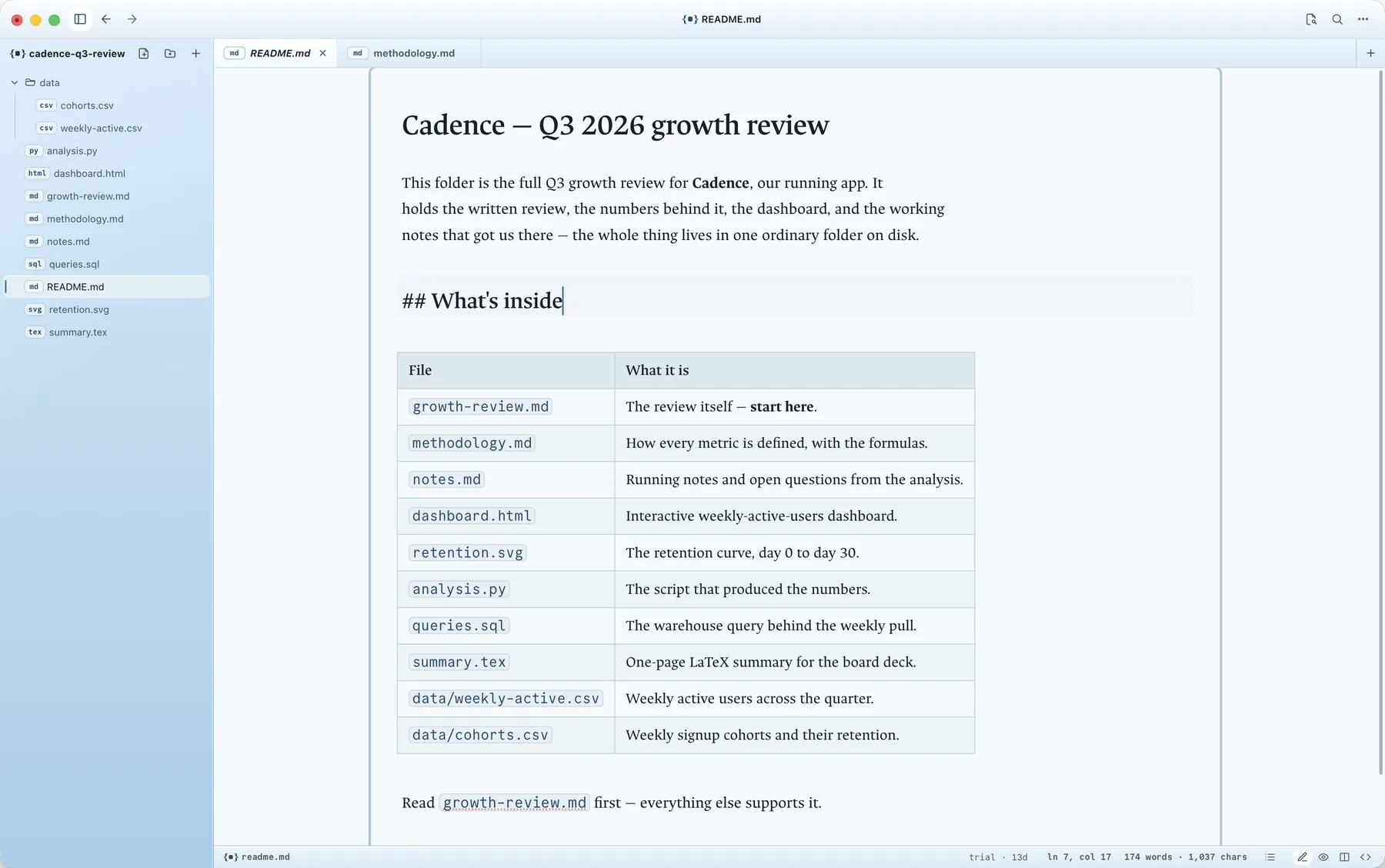
Markdown gets a document, not a text dump.
Reports, notes, and READMEs render in a quiet reading pane, with GitHub-flavored Markdown, tables, footnotes, and callouts. Live preview, reading, split, and source modes are one shortcut apart, so the rendered document and the raw text are never more than a keystroke from each other.
Frontmatter is recognized rather than shown as stray text at the top of the page. The reading column comes in three widths — narrow, medium, and wide — and wide tables scroll inside the page instead of breaking the layout.
live preview · reading · split · source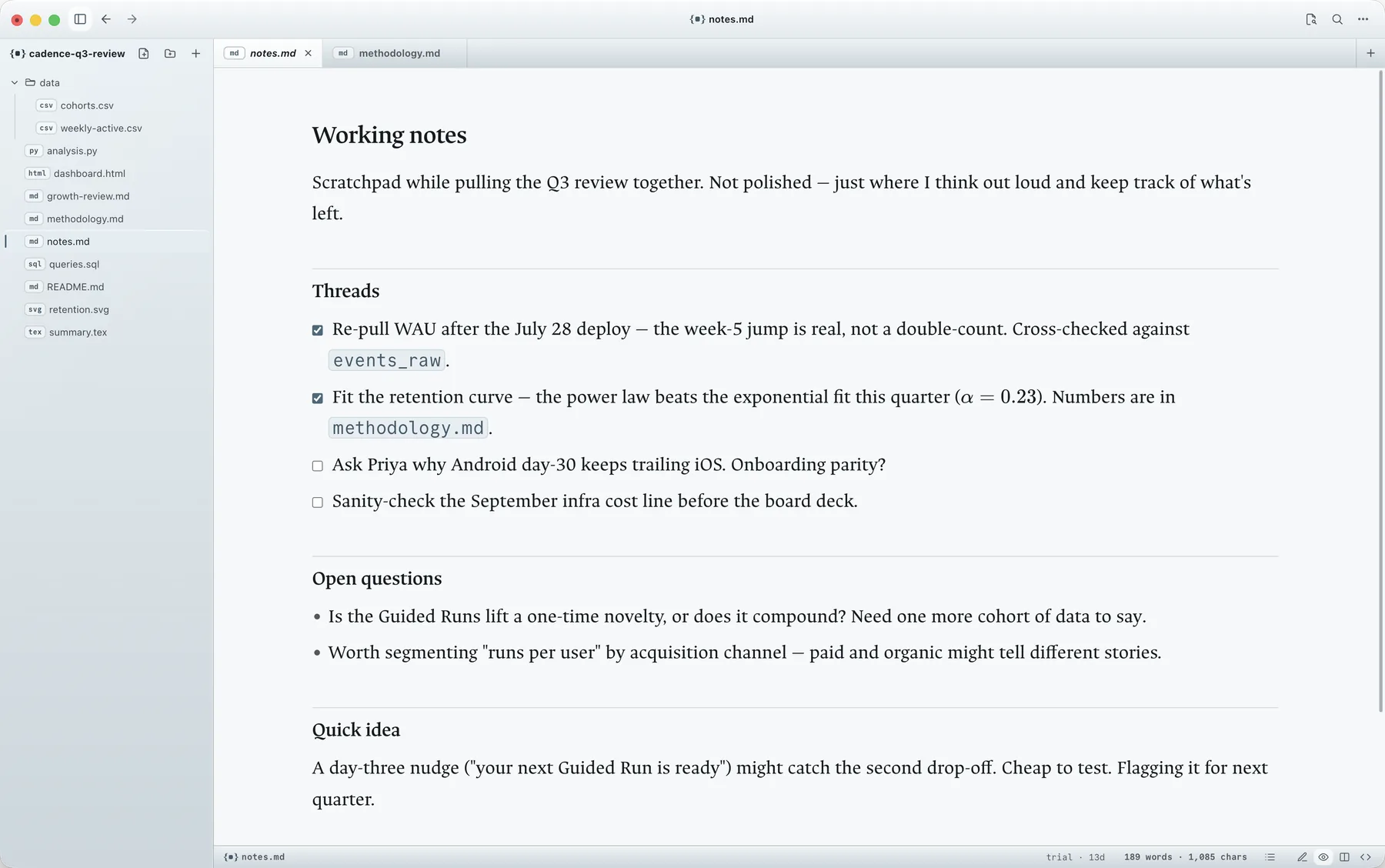
Equations read the way they were written.
LaTeX math renders with KaTeX, inline and in display blocks, in the same reading pane as the rest of the document. A note with a derivation in it stays a note — you are not exporting to a separate tool just to see whether the math is right.
KaTeX · inline and display math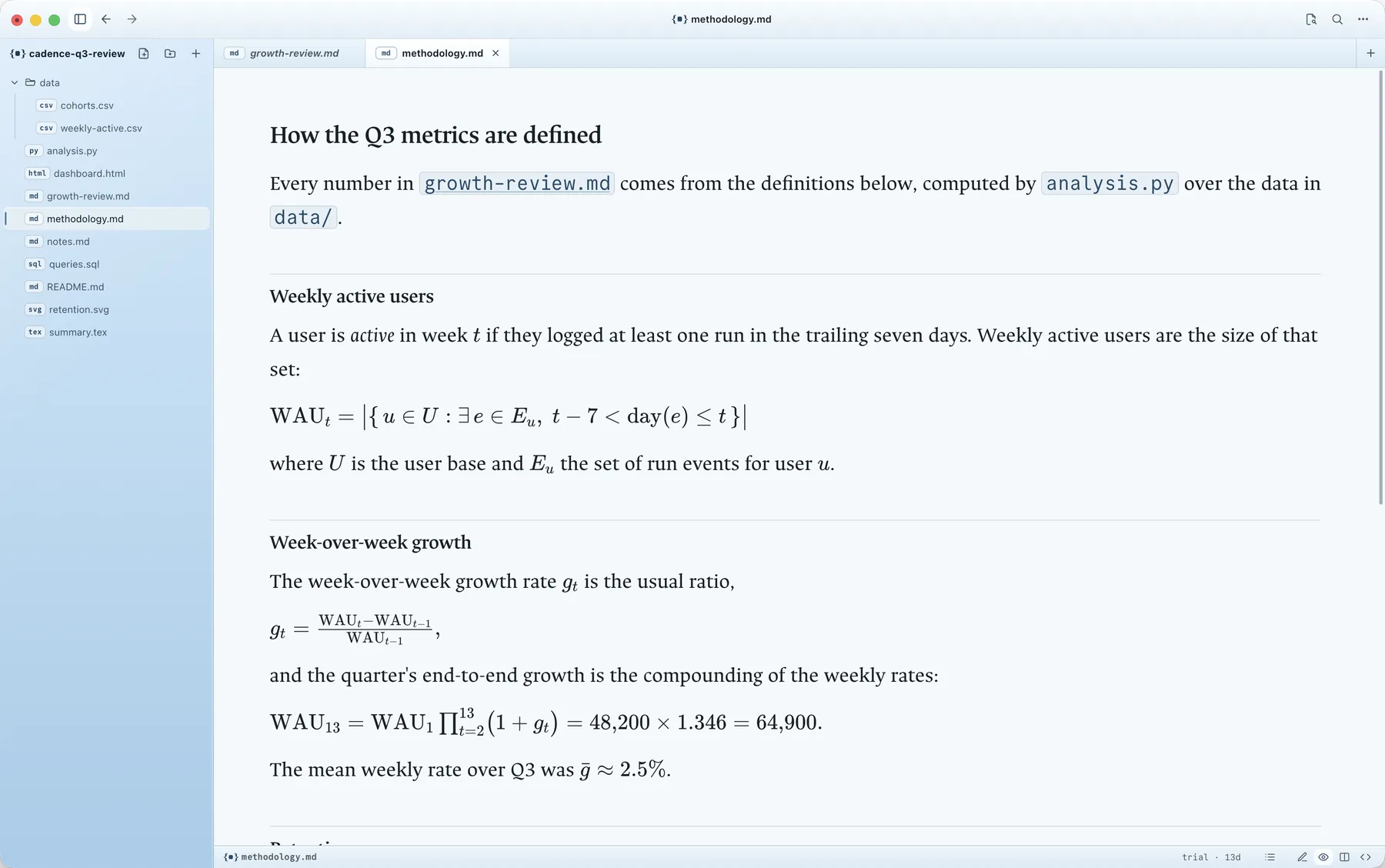
Generated dashboards preview without asking for trust up front.
HTML files open in a sandboxed, isolated preview surface. Scripts stay off until you allow them, per file, by an explicit choice that persists for that file. A settings toggle can allow scripts by default, but that stays off unless you turn it on. Everything else stays contained inside the preview.
sandboxed preview · scripts off by default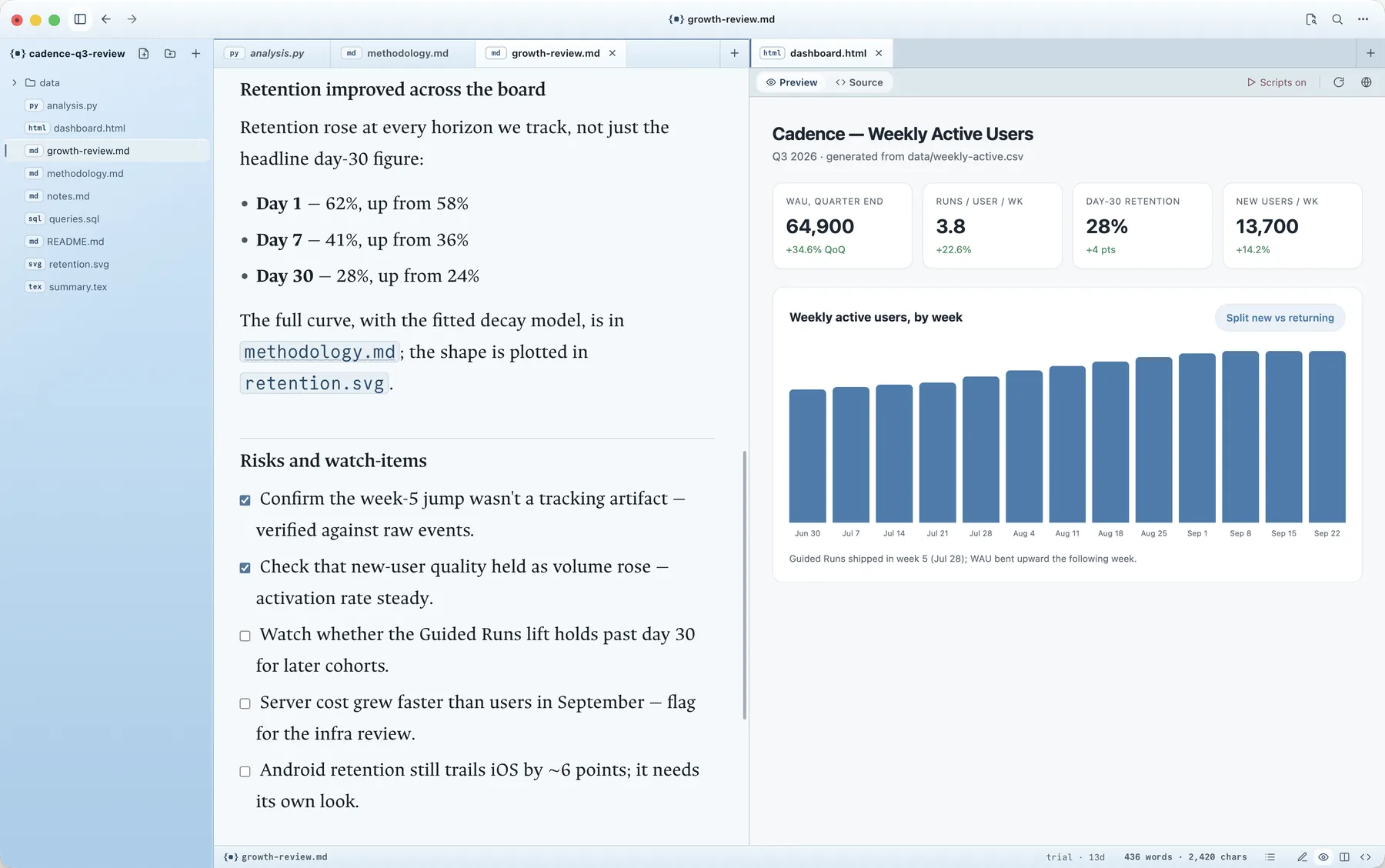
Moving around a folder stays fast.
A command palette reaches every action without a menu. Quick open jumps straight to a file by name. Full-text search covers every folder in the workspace, streaming results in as it scans, and in-file find handles the rest. Tabs can be dragged to reorder, pinned, or reopened after closing, and split panes put two files side by side.
You can add more than one root to the sidebar at once, and the whole workspace — tabs, splits, and roots — is restored the next time you open it.
The sidebar bends to how your folders actually look. Give a folder a display name without touching its name on disk, add a rule that strips machine prefixes like dates from generated folder names, and step up to a parent folder without closing your tabs.
command palette · quick open · search · splits · display names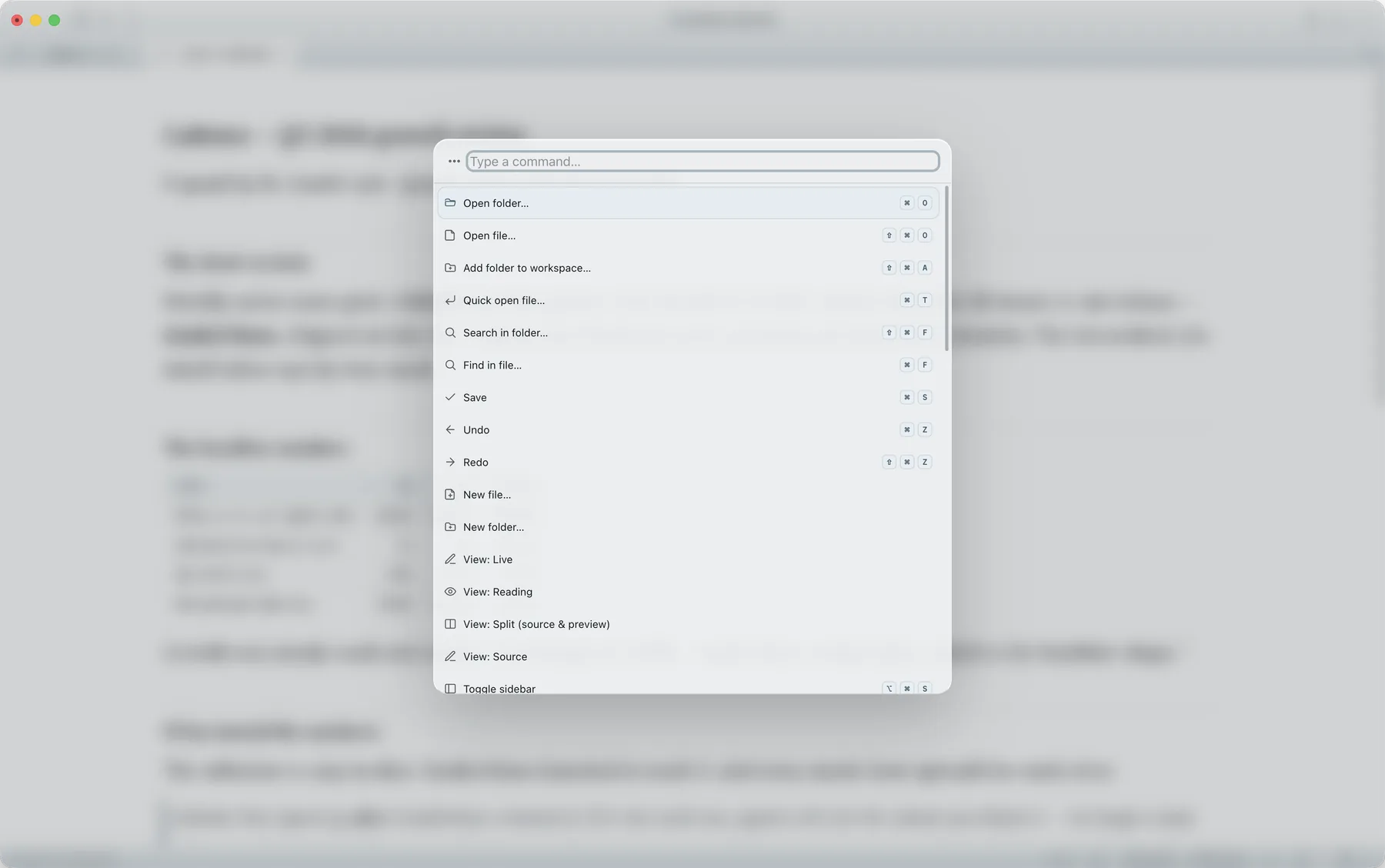
The workspace notices what changes on disk.
Your files stay plain files in their folder. When something changes outside the app — a script rewrites a report, a new screenshot lands next to it — the tree and any open files refresh to match. Save happens with conflict detection, so Superset can tell you when a file changed underneath you instead of silently overwriting it.
Deleted files and conflicts surface as calm banners in the document pane, not dialog boxes that block the rest of the workspace.
file watching · conflict detection · multiple rootsQ2 pipeline review
Qualified leads grew 34% quarter over quarter, driven almost entirely by the two channels doubled down on in April.
Every shortcut is remappable.
The defaults below cover opening, finding, viewing, and saving. If a combination collides with another app you use, remap it — nothing in Superset Files is fixed to one key.
| ⌘O | Open folder |
| ⌘T | Quick open |
| ⇧⌘P | Command palette |
| ⇧⌘F | Search in folder |
| ⌘F | Find in file |
| ⌘S | Save |
| ⌥⌘1–4 | View modes (live, reading, split, source) |
| ⌘\ | Split editor |
| ⇧⌘T | Reopen closed tab |
| ⇧⌘A | Add folder to workspace |
| ⌘, | Settings |
What a folder can hold, and how it opens.
Point Superset at a folder, and each file opens in the mode that suits it — no sorting, no setup, whatever mix the folder already holds.
Markdown
Live preview, reading, split, and source modes. GFM, KaTeX math, callouts, footnotes, and frontmatter.
LaTeX math
Inline and display equations, rendered with KaTeX in the same reading pane.
HTML
Sandboxed, isolated preview. Scripts off by default, enabled per file by an explicit, persistent choice.
Images, video, audio
PNG, JPG, GIF, WebP, SVG, AVIF, HEIC, and more, with a zoom-and-pan lightbox for images. Video and audio play in place, whether the file sits in the folder or streams over https.
Rendered with the system's built-in viewer, inside the app.
Code and plain text
A real editor, CodeMirror, underneath. CSV and TSV open as editable text.
Try the workspace on your own folder.
Download the free trial and open a folder you already keep — no account, no import. The download page has the current build.